Course administration
 Course administration app
The Course administration app is used to link students and teachers to a Course or an Offering level by creating groups on the desired level and bringing students and teachers together in those groups.
These groups allow teachers to track their students progress and score their tests, and enroll students for courses. Once a teacher is added to a group, the group becomes available in all teacher apps.
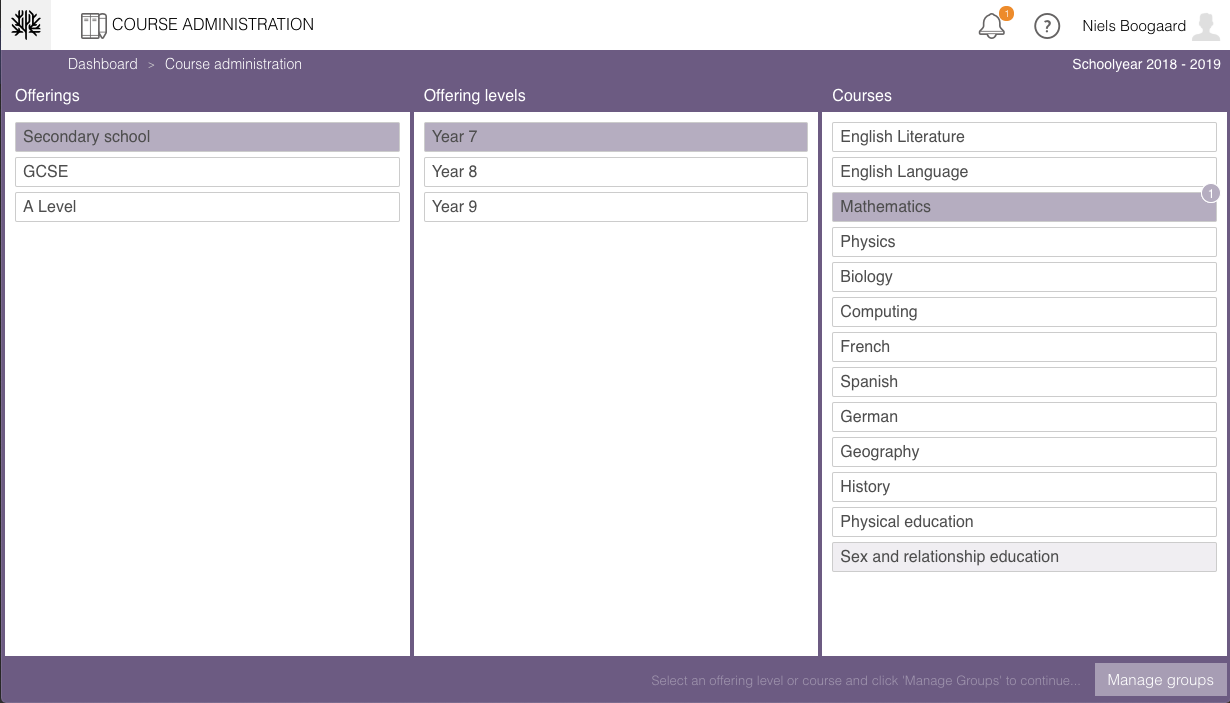
The app shows an overview of the Offerings, Offering levels and Courses as created in the Educational structure app. The small circular badges with a number will show the amount of groups attached to the Offering level or Course if any.
Group types
Summar.io knows two types of groups; Administrative- and Learning groups .
An Administrative Group in Summar.io is used to group students in a way that makes sense from an administrative point of view. Administrative groups are defined on offering levels. As such they can reflect the way an educational institute is organised. A base group is an example of an Administrative group.
A Learning Group is the fundamental concept in Summar.io to describe the social and collaborative context in which students and teachers work. A group of students working on the same course is an example of a learning group. As such, learning groups are defined on a course level. Note: learning groups are also used to create inboxes in the Scoring app.
Each group should have at least one teacher and one or more students.
Adding groups
Administrative groups are added on an Offering level, Learning groups are created on a Course level.
To add a group;
- Click on the offering for which the group is to be created. ;
- Click on the desired offering level or course. The 'Manage groups' button on the lower right corner of the window should become activated after selecting these;

- Click the 'Manage groups' button;
- Add a group by clicking the 'Add group' button;
- Fill in the group's name and click 'Create'. The newly created group is now selected and ready to be filled;
- Drag students and teachers from the right part of the screen to the appointed places in the group overview. The group is automatically saved after each change.
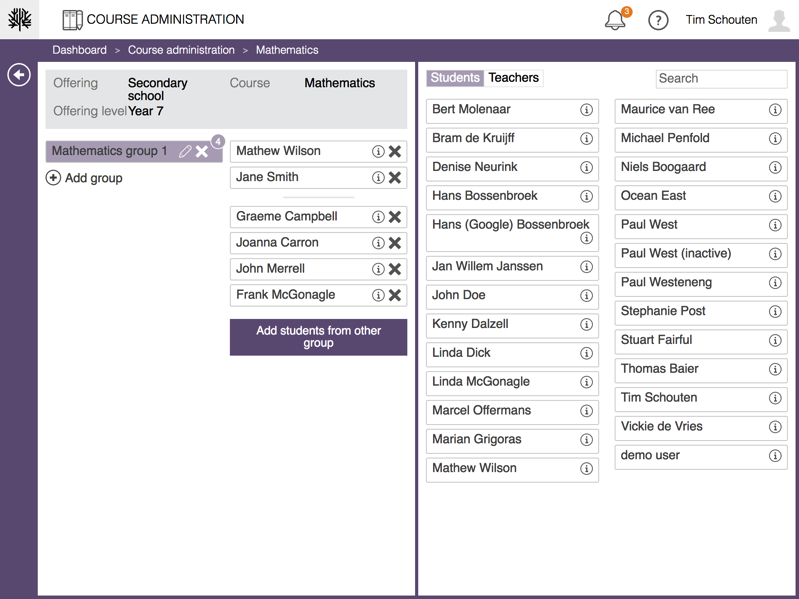
It is also possible to add students from another group. By using the button 'Add students from another group' the following dialog will be shown.
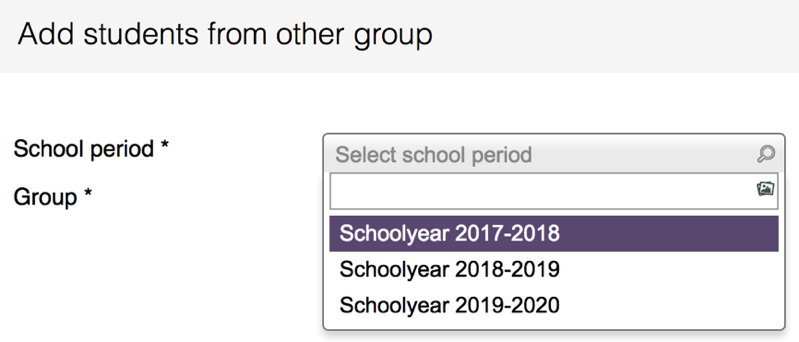
By selecting a school period and a group, a list of students is shown that you can add to a new group.
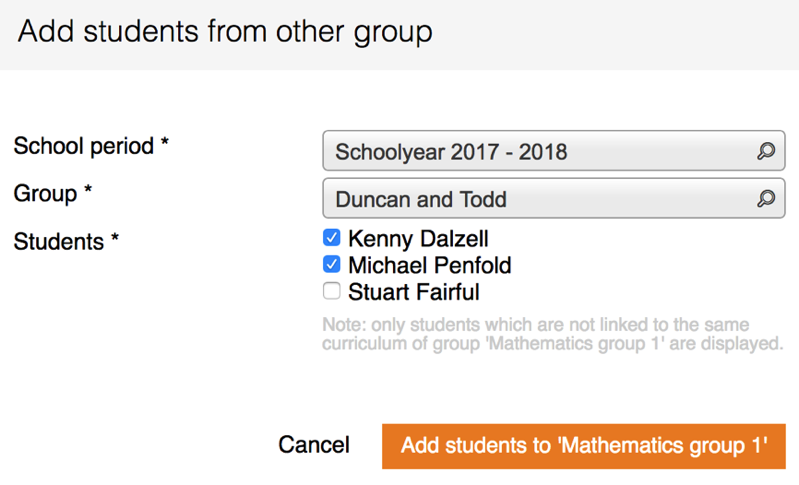
By using the button 'Add students to "group name"' the students are added to the new group.
After adding students to the group, a small circular badge will show the amount of students added to the group.
Editing or removing groups
To edit or remove groups, select the Offering level or Course that contains the group, and click 'Manage groups'. Select the desired group by clicking on it to start making changes.
Use the pencil icon to change the group's name.
Use the "X" button to on the group itself remove the group.
Use the "X" button on students and teachers to remove them from the group.
The group is automatically saved after each change.
Related Articles
User administration
User administration app Within Summar.io a u ser can have several Roles and each role will provide access to certain apps. Besides the different roles the u ser has one or more e-mail addresses which can be used to log in. To administer all the user ...Curriculum administration
The Curriculum administration-app The Curriculum administration-app is used to manage the curricula from the Catalog and make them available for the courses in Summar.io. It is also possible to switch learning lines and content providers on and off. ...Student administration
Student administration app The Student administration app is used to manage users that have the "student" role assigned. It provides an overview of current students as well as the option to add new, or update current student profiles. Adding students ...Staff administration
Staff administration app The Staff administration app is used to manage users assigned to the Teacher role. It provides an overview of current staff members as well as the option to add new, or update current staff members. Adding staff members Click ...School administration
School administration app The school administration app manages the basic data of a school and therefore only users with the administrator role are allowed to use this app. In this app you can manage the school details and the school periods. School ...