Recommendation
 Recommendation app
As a teacher you can create recommendations in Summar.io. Recommendations can be used to optimise the learning lines of individual students by issuing extra homework, or specific remedial material to help a student with a particular challenge. A student will instantaneously see the extra work that needs to be done.
In order to be able to create the best recommendations for either individual students or even groups of students, this app also provides for a number of learning statistics. These statistics provide teachers with extra insights into the performance of individuals or groups and thereby enables them to create the most advantageous recommendations.
Overview

The overview screen of the recommendations app consists of 3 different panels: a selection panel, a progress panel and a statistical overview panel.
1. The selection panel
The selection panel can be used by teachers to select the student or group of students for whom recommendations are to be defined or updated. By selecting a student or group of students, you are automatically presented with the associated statistics. It is not possible to manage recommendations for a partial group of students.

2. The progress panel
The progress panel presents the user with an overview of the learning units and learning objects that have been used by a student or group of students. The progress is shown by grouping everything in the categories Open , Completed and Not Started .
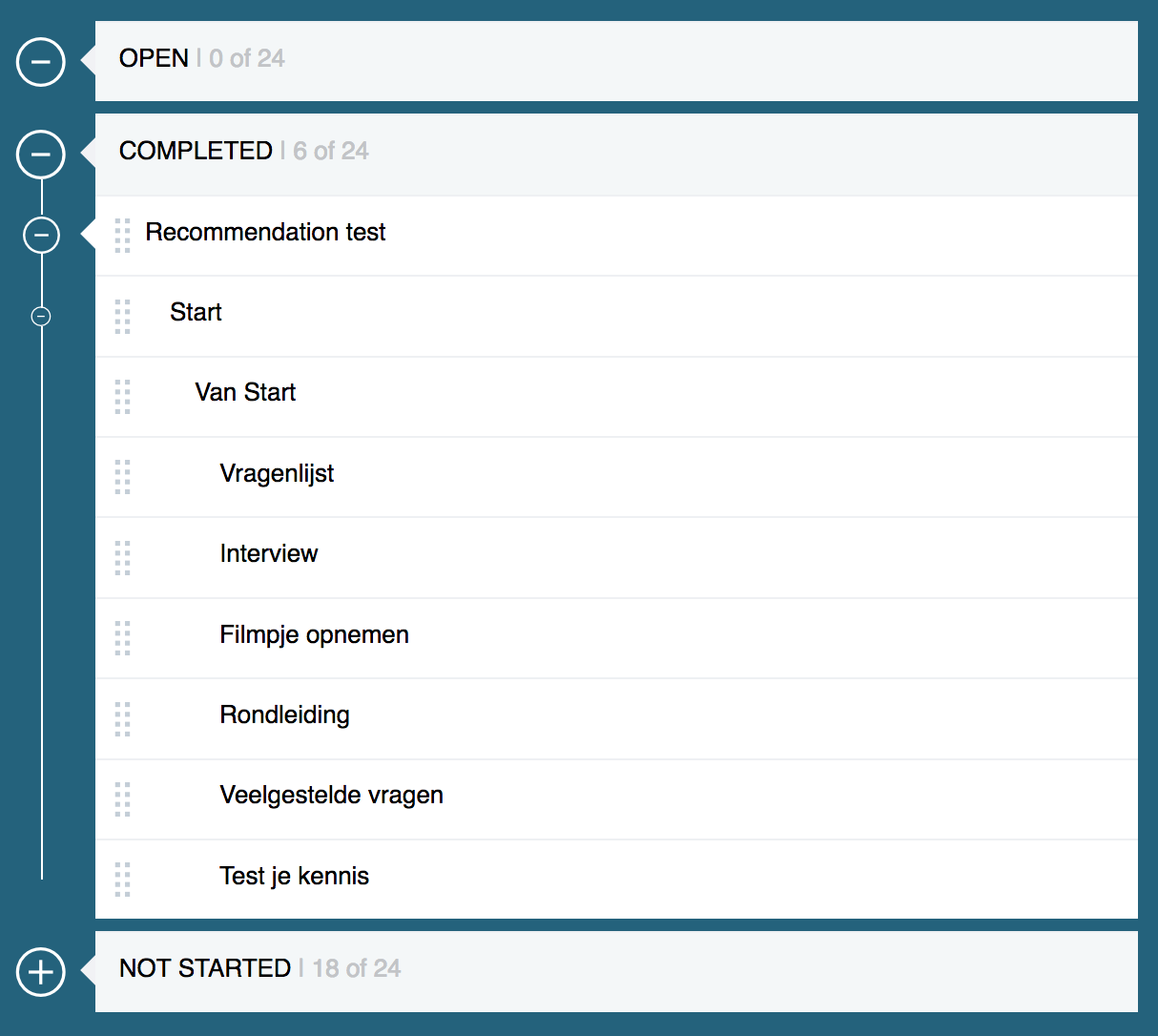
' Open ' refers to learning units or learning objects that have been opened and maybe handed-in by a student but that is not scored or assessed in any way. Learning material is also considered to be 'Open' in case the results were scored insufficient and the teacher decided that the work needs to be done again. When a group of students is selected it means that at least one member of the group still has work that is still 'Open'.
' Completed ' refers to learning units or learning objects that have either
been scored with a sufficiently high result or which are approved to being completed
by the teacher. At a group level, this means that all members of a group have
achieved a sufficient result or that the teacher has marked everything complete.
' Not Started ' refers to learning units or learning objects that have
not yet been opened or accessed in any way. At a group level, this means that
none of the members of a group have opened or accessed any of the learning
units or learning objects.
The numbers that are displayed behind ' Open ', ' Completed ' and
' Not Started ' indicate the number of learning objects of the total number
of learning objects of the category.
Take for example a group of 3 students working on a collection of 6 learning
objects. When looking at this at a group level, the statuses would display X of 18 ,
after all 3 * 6 = 18. When looking at this for an individual student, the status
would display X of 6 .
3. Statistical overview panel
The statistical overview panel shows the realised or actual progress offset against the expected progress and the average progress at the level of the group. This is calculated for the learning units, learning objects and the time spent for both individual students as well as the associated group.
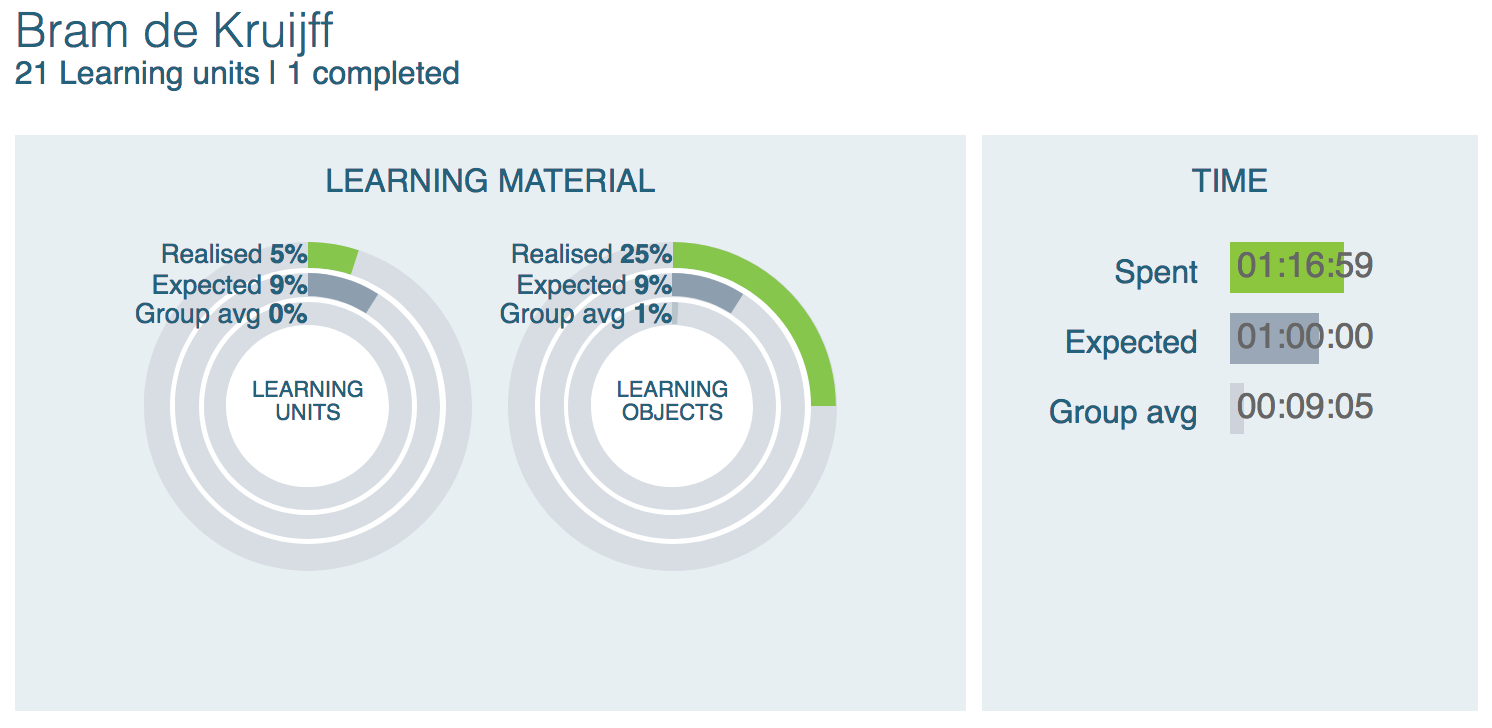
The panel is titled using either the name of the individual student or the name of the group. On the left-hand side it displays the various statistics of learning units and learning objects, whereas on the right-hand side it displays the characteristics of the time spent. When using this app for groups of students, it adds up the statistics of all learning units and learning objects.
Interpretation of the statistics
The statistics (in percentages) with respect to LEARNING MATERIAL for the categories Realised , Expected and Group avg . are calculated as follows:
Realised indicates the percentage learning units or learning
objects that have been completed.
Expected signifies the percentage of learning units or
learning objects that should have been completed given the amount of time spent
so far.
Group avg shows the average percentage of learning units
or learning objects that is completed by the members in the group.
The TIME panel shows the actual time that was used to complete the learning units or learning objects as time Spent . The Expected time displays the time that is expected to be required to complete the learning units or learning objects . Group avg indicates the average of the time spent by the members of the group to complete the learning units or learning objects.
Note : The time that is expected to complete a learning unit or learning object is defined in the definition of the associated learning units and learning objects in the catalog. The time that is required to complete a learning unit is defined as the sum of the comprised learning objects.
Creating a recommendation
Within Summar.io two types of recommendations can be added. The first type is the Resource which is displayed as an ordinary learning object. The second type of recommendation is Reference material which is shown in a separate section, Other interesting links , at the bottom of the page.
To add a recommendation, first select a group and if desired an individual student in the selection section. A recommendation can therefore be made at both group and individual level, but it is not possible to do this for a select number of group members at the same time. So you can create a recommendation for either an entire group or an individual student from that group
Next, in the progress section in the 'Open' or 'Not yet started' section, select a learning unit to which you want to add a recommendation. With the 'Upload' button you start the dialogue with which you can add a resource for the recommendation. To edit a resource, click on the pencil and the cross will remove it.
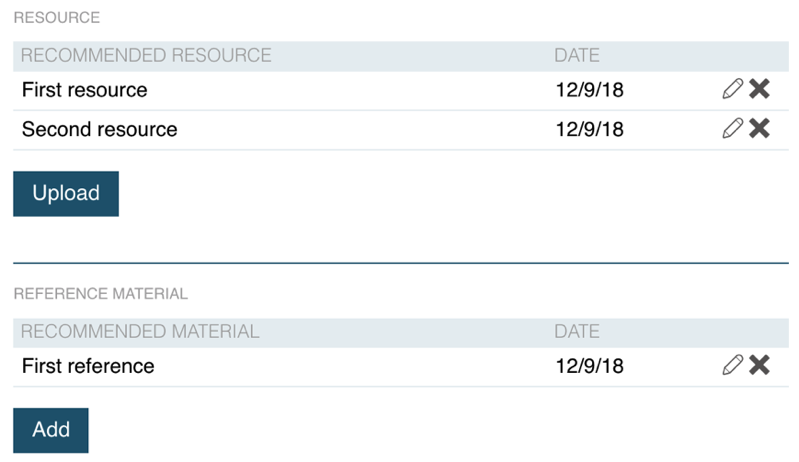
Resource creation dialog
To add a resource you can choose a File or a URL . For both, a name and a learning phase must be specified. When you choose File you can upload a file from your computer. When you have chosen to add a URL , you also have to indicate where the URL is pointing to, a video, an Office365 document, a Google doc or just an HTML page. Optionally, a background image can be added. This image is used to show the resource in the relevant learning unit. The resource can then be added using the ' Create ' button.


As a result, the learning environment of the student will display the recommendation as a normal learning object.
Reference material creation dialog
To add reference material, a name, URL and a content type must be specified.
The content type selection will determine how the reference will be displayed
upon opening.
The reference can then be added using the 'Create' button.
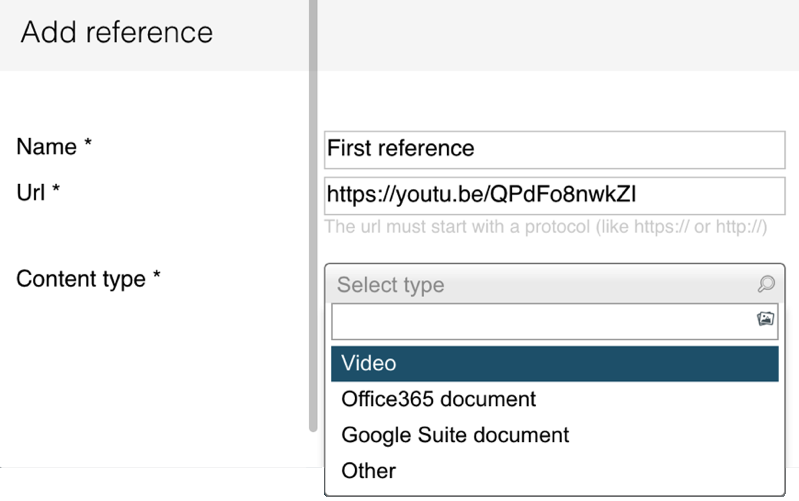
Finally, the reference material is shown at the bottom of the page under the header Other interesting links.

Related Articles
Provide student id while opening learning material
It is possible to include a student id placeholder in learning material links that refer to an external source. Summar.io then ensures that this placeholder is replaced by the actual student identifier and included in the URL when a student opens ...Timeline
Timeline app The Timeline app allows Teachers and Mentors to view and analyse the learning activities that were done by a student in the context of a course. Overview 1. Selection panel In this section the teacher determines for which group or ...User administration
User administration app Within Summar.io a u ser can have several Roles and each role will provide access to certain apps. Besides the different roles the u ser has one or more e-mail addresses which can be used to log in. To administer all the user ...