Provide student id while opening learning material
It is possible to include a student id placeholder in learning material links that refer to an external source. Summar.io then ensures that this placeholder is replaced by the actual student identifier and included in the URL when a student opens this learning material. External systems can use this for reporting purposes.
This is supported for the following learning material types:
- QTI learning objects of type LINK in the catalog;
- Resources of type URL in the Recommendation app;
- Reference material in the Recommendation app;
Adding a placeholder
Add one of the above learning materials, for example a reference material in the Recommendations app:
- Open the Recommendation app and select a learning unit.
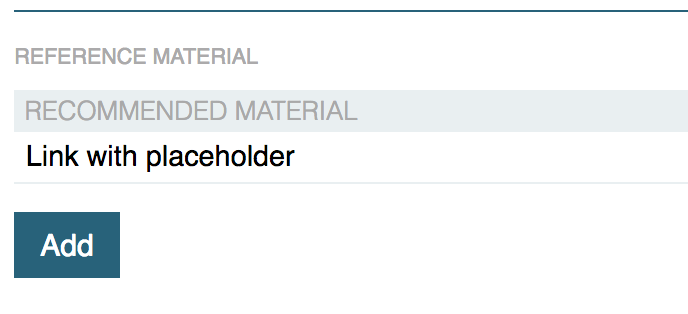
- Click on the Add button under Reference material.
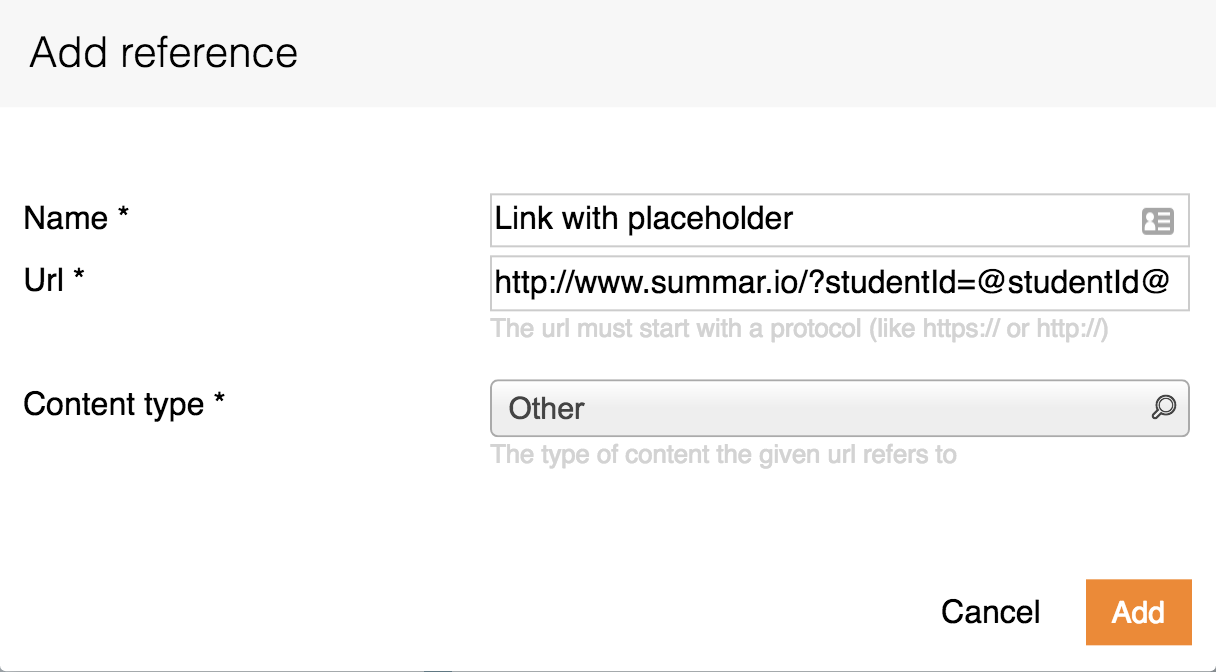
- In the Url field, type the link to the external source. Add the placeholder @studentId@ to where the student identifier should be inserted.
- Open the learning material as a student. In the address bar you can see that
the student identifier is now included in the url of the external source.

Although the addition of the supported learning materials mentioned can differ, the placeholder ( @studentId@ ) and the functioning are the same.
Related Articles
Learning objects
A LearningObject is "a collection of content items, practice items, and assessment items that are combined based on a single learning objective". Within Summar.io they are designed to be the basic unit of learning material that can be used in ...Student administration
Student administration app The Student administration app is used to manage users that have the "student" role assigned. It provides an overview of current students as well as the option to add new, or update current student profiles. Adding students ...Learning environment
Learning environment Login This app is the place from which the students work. To get here, the student first has to log in. This can be done in 3 ways: Using a Summar.io local account with an e-mail address and a password; With a Google+ account; ...Retrieve Summar.io-data for learning analytics
Summar.io offers the possibility to use data from the system for analysis purposes. This data is automatically generated every night and currently consists of 2 CSV files, units.csv for module oriented information and objectives.csv for learning ...What does a checkmark in front of a learning objective mean in the Progress app
A checkmark in front of a learning objective means that all students have finished this learning objective; the learning objective is considered completed for all students.