Other Administration apps
 Cache control
The Cache control-app manages 2 types of cache within Summar.io, the cache from the modules and learningobjects being used and the cache from the data that is being used in the Insight-app.
With the 3 buttons you can start 3 different actions:
- Evict all content caches
- Rebuild insight views fully
- Rebuild insight views from snapshots
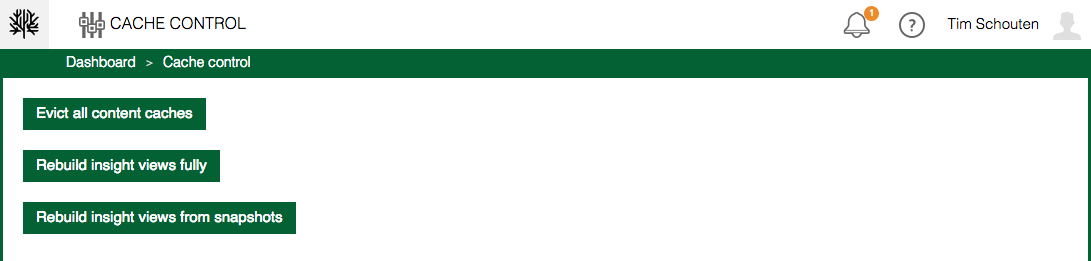
Evict all content caches
With this button all cached modules and learningobjects are flushed. Summar.io will reload them from the catalog so that the most recent objects and modules will be used.
Rebuild insight views fully
The data for the Insight-app is continuously refreshed so that the latest information is available. When there have been changes or problems in the catalog it could be necessary to rebuild te data from the database.
Depending on the nature and shape of the changes one can choose to do a complete rebuild from the database. During the rebuild not all functionalities are available and the information is not complete. It is wise to do this rebuild when there are not many users active in Summar.io.
Rebuild insight views from snapshots
Every night a snapshot is made from all the views that are used in the Insight-app. When there have been changes or problems in the catalog that only relate to the current day one can choose to just rebuild the views that are created today. This is much faster than fully rebuilding everything en will have less impact on the users.
 User activity
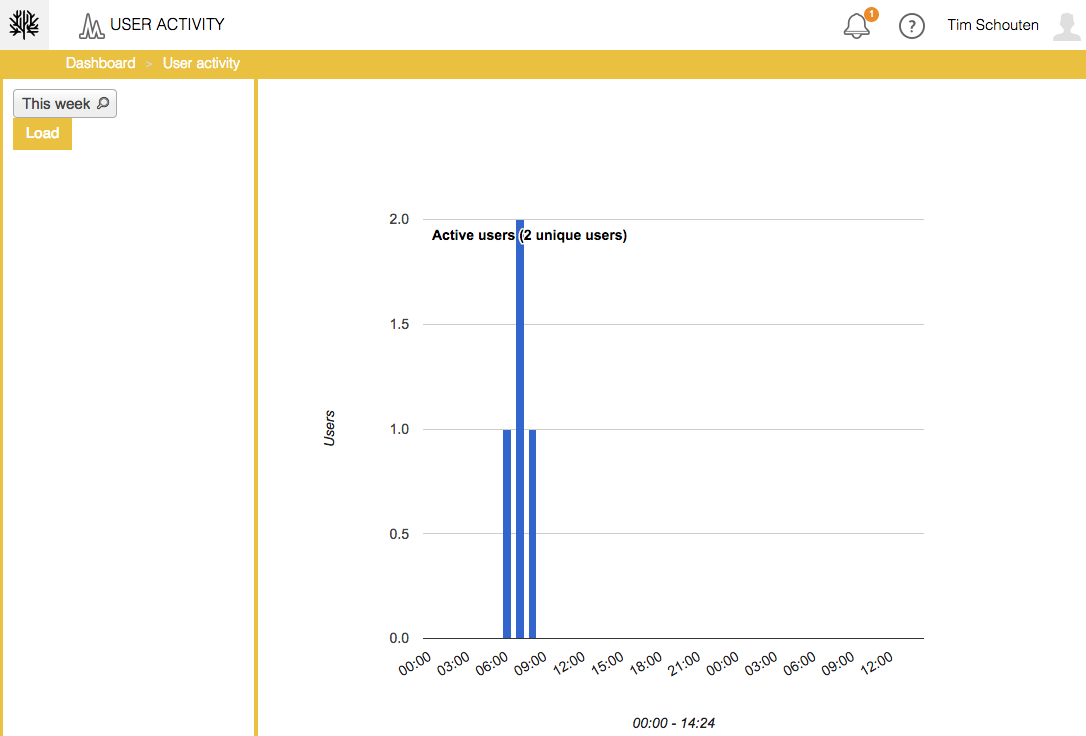
This app will show how many users were active within a a period the user has chosen. Depending on the chosen period the X-axis is populated with days, hours or minutes. The number of active, unique, users are plotted on the Y-axis.
 Student import
To make it possible to quickly create students in Summar.io there is the Student import app. It is possible to import students from a CSV file .
This file must have the following structure, the first line always contains the field names and is mandatory. Each next line contains student information. The fields are separated by commas. The fields that must be in the file are:
- first_name
- middle_name
- last_name
- gender
Below an example of how this would look like
"first_name","middle_name","last_name","email","gender"
"Dorothy","","Koraka","anmanido@hotmail.com","female"
"Liam","","Gismann","spy1guy@mail.com","male"
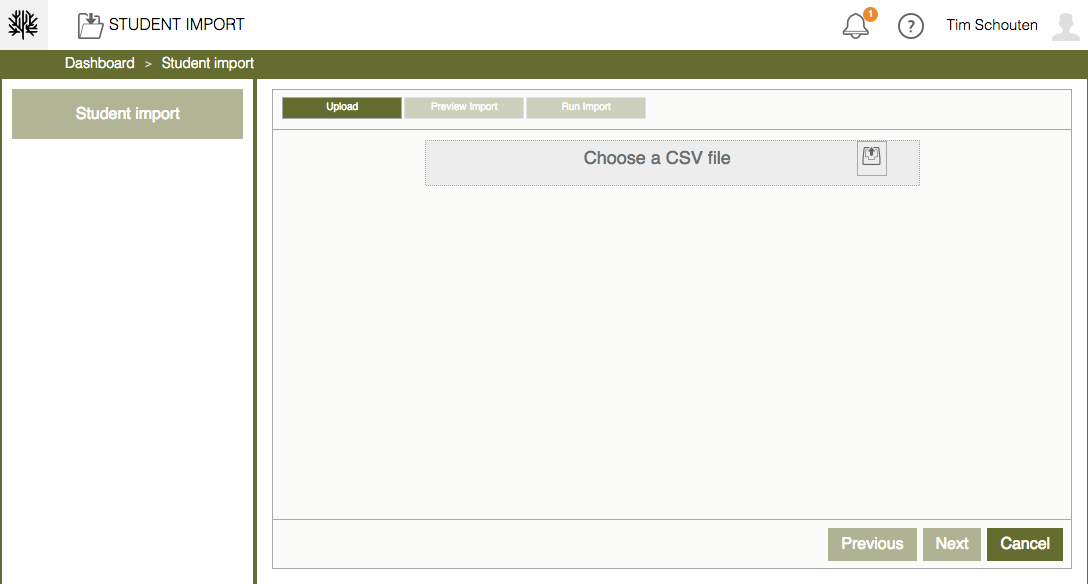
Below are the different steps to process the CSV file. First you select a CSV file by clicking the button in the Upload-bar
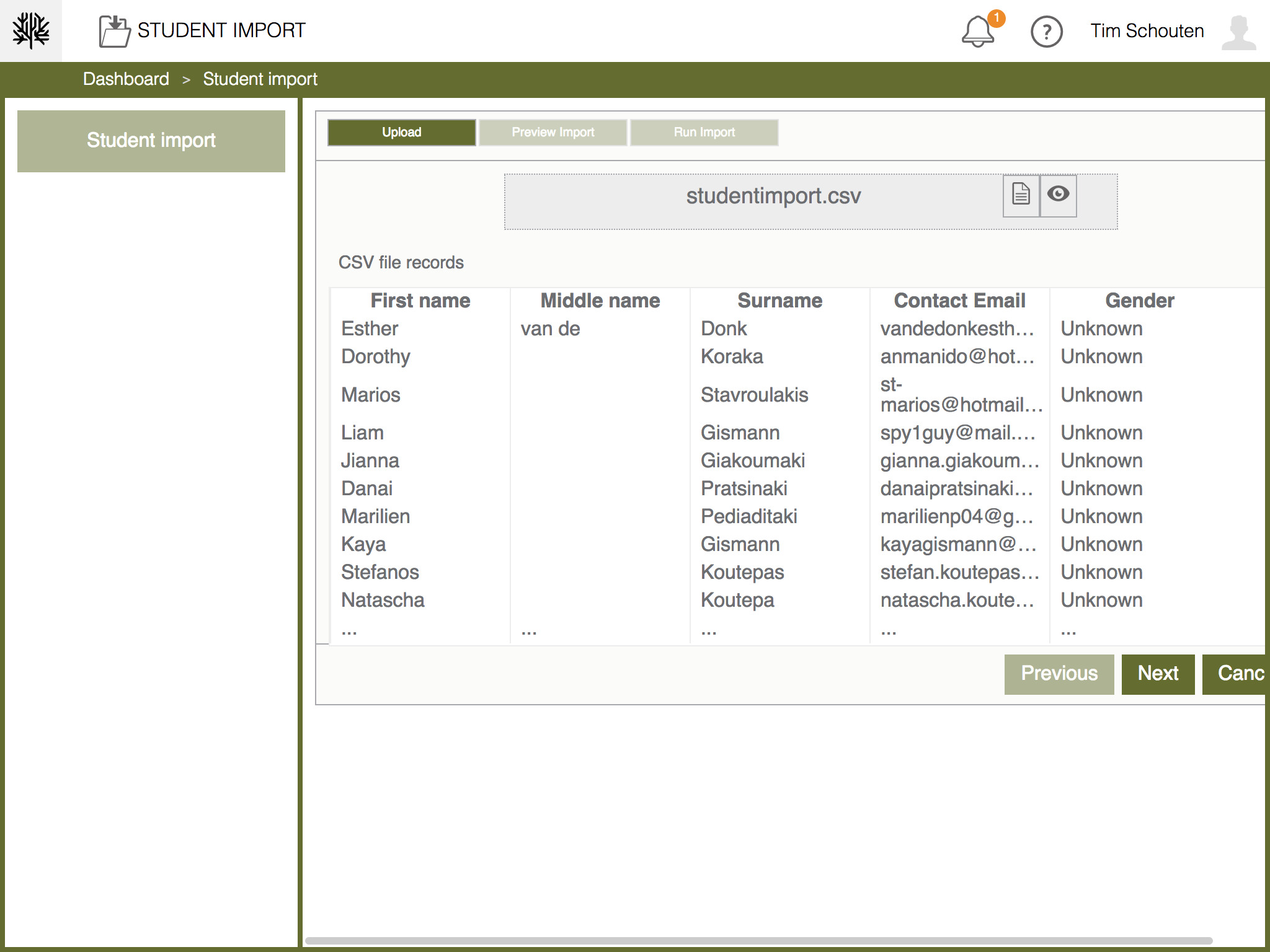
When the CSV file has been uploaded you will see the screen below with the first 10 students from the file as an example. By clicking on "Next" you continue. When you click on the "Cancel" button you will return to the start screen and you can upload a new CSV file.
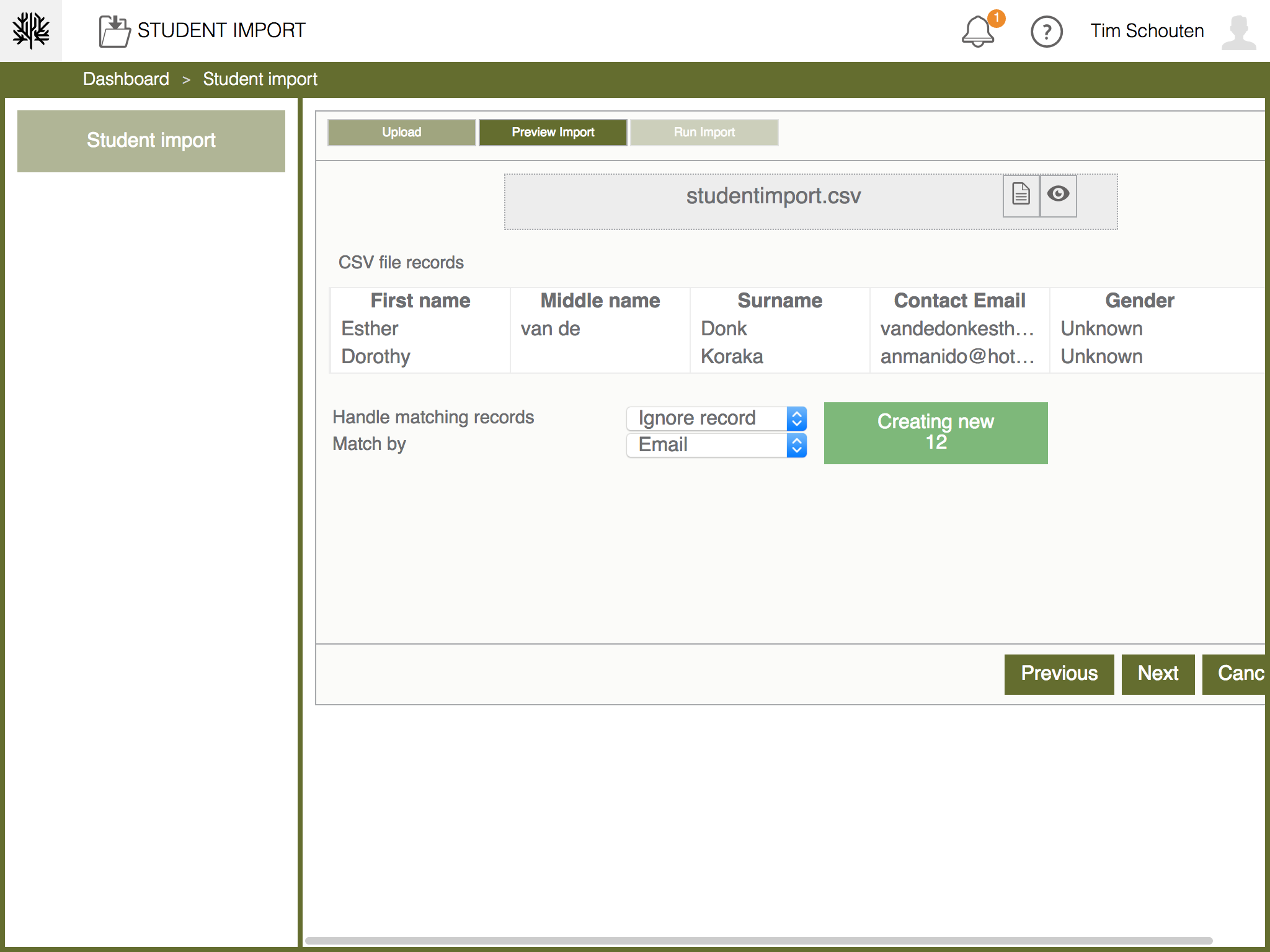
In this last screen you indicate how the rules, or records, with student information must be matched and processed. You can match by Name or E-mail address.
When a record is matched you can indicate how to handle this. There are 3 possibilities:
- Add
- Update user
- Ignore record
In the " Add " option, every record from the CSV file, regardless of whether there is a match, is added as a student. In the " Update user " option, the existing user data is updated during a match with the data from the CSV file. When the " Ignore Record " option is selected, only the records from the CSV file are added when there is NO match. This is the most used option.
When everything is set you can see how many new records are created and how many will be updated and skipped. The import can be started by clicking "Next". When you click on the "Cancel" button you will return to the start screen and you can upload a new CSV file.
When the import is finished you will return to the start screen.
Related Articles
User administration
User administration app Within Summar.io a u ser can have several Roles and each role will provide access to certain apps. Besides the different roles the u ser has one or more e-mail addresses which can be used to log in. To administer all the user ...Course administration
Course administration app The Course administration app is used to link students and teachers to a Course or an Offering level by creating groups on the desired level and bringing students and teachers together in those groups. These groups allow ...Student administration
Student administration app The Student administration app is used to manage users that have the "student" role assigned. It provides an overview of current students as well as the option to add new, or update current student profiles. Adding students ...Staff administration
Staff administration app The Staff administration app is used to manage users assigned to the Teacher role. It provides an overview of current staff members as well as the option to add new, or update current staff members. Adding staff members Click ...Curriculum administration
The Curriculum administration-app The Curriculum administration-app is used to manage the curricula from the Catalog and make them available for the courses in Summar.io. It is also possible to switch learning lines and content providers on and off. ...