Progress
 The Progress app
The Progress app can be used by teachers to monitor and analyze the progress of students. In Summar.io, progress can only be monitored or analyzed for a specific course which has one or more learning lines. In order to use this app, a number of steps should be followed. These steps are described here.
1. Select course, learning-line or group
The first step to start using the Progress app is to select a target for which the progress is to be analyzed. This is done by choosing a Course, a Learning Line and a Group. Once this selection is made, Summar.io will collect the required information for further analysis. Selecting a target can be done using the drop-down menus on the top of the Progress app.

After Summar.io has collected the necessary data, it is possible to drill-down in order to analyze the progress of a group of students in terms of performed activities, quality of work and level of completion.
2. Select an individual learning-objective or a step comprising multiple learning-objectives
The second step of the analysis process is to select one or more learning-objectives that are to be analyzed. In the Progress app the learning-objectives are represented in the sequence that they are offered to the students. Selecting a learning-objective can be done using the explorer on the left-hand side of the screen. The following example shows a part of the sequence of learning objectives of the "Learning Java Programming" course.
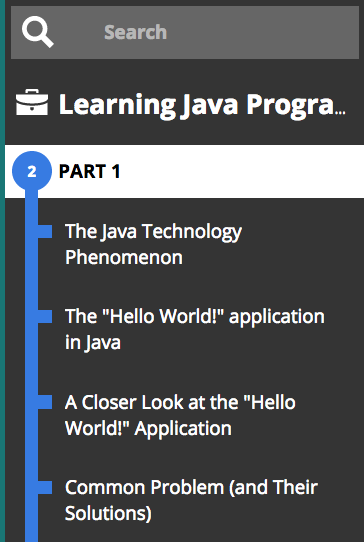
This dialog enables a teacher to either select a complete series of learning-objectives (step) that are represented as parts, in this example PART 1, or an individual learning-objective.
3. Order the results by Name, Progress or Quality
After one or more learning-objectives have been selected, the students are displayed grouped by progress status: In Progress, Not Started or Done. It is however possible to re-order the students by name, the progress that was achieved so far or the quality of the results.
You can click on the student for whom the detailed progress needs to be analyzed. After clicking on the student's name, the progress details are displayed on the right-hand side.
4. Progress details of a student
The progress details for a student are displayed using the following dialog.
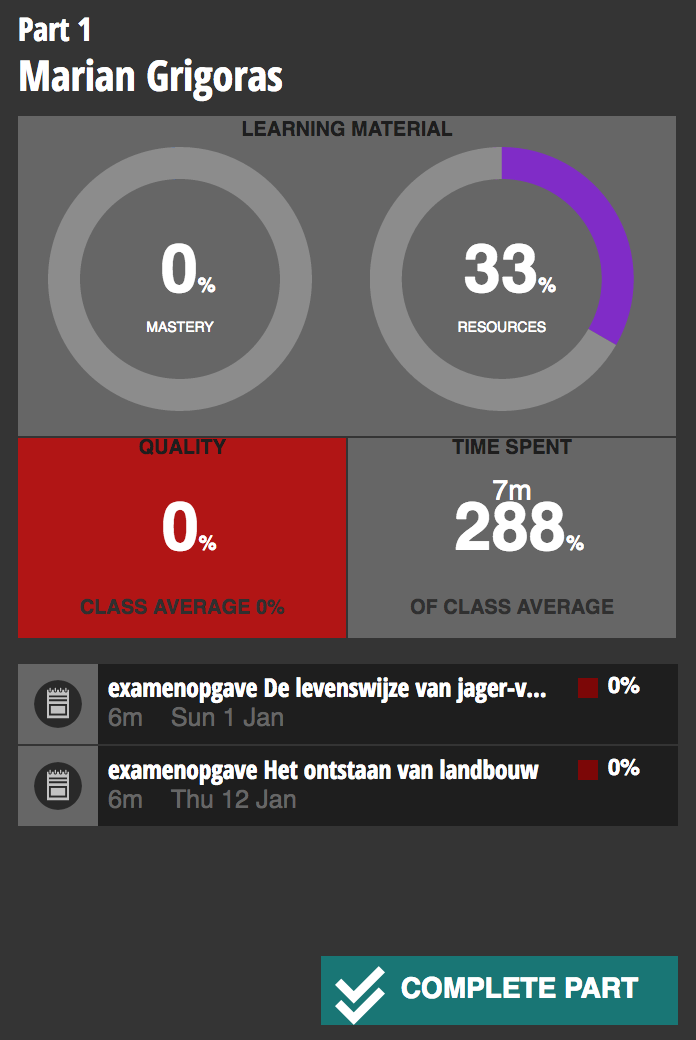
This dialog displays the following progress-details:
- The mastery-level that is calculated using the scoring-details of the underlying learning-objects
- The resources that were consumed or worked on as part of the selected learning-objectives
- The overall time spent on the selected learning-objectives
5. Mark one or a series of learning-objectives as Complete
If the progress analysis signals that a student has mastered one or a series of learning-objectives, it is possible to mark that single or series of learning-objectives as completed. This can be done by clicking the "Complete Part" or "Complete Objective" button at the bottom-right corner of the progress-details dialog.
"Complete Part" button 
"Complete Objective" button 
It is always possible to reopen a single or a series of learning-objects, by clicking on the associated reopen button.
Related Articles
What is the meaning of the colors of parts in the Progress app?
In this example the parts and learning objectives have a blue color. This means that one or more students are working on these parts or the associated learning objectives. On the spheres of the parts a number is displayed. This number indicates how ...What does a checkmark in front of a learning objective mean in the Progress app
A checkmark in front of a learning objective means that all students have finished this learning objective; the learning objective is considered completed for all students.Teaching with Summar.io 2.6
Congratulations! Your school is going to use Summar.io. Summar.io is an inspiring digital learning environment that gives learners more room to take control of their own learning process. The role of you as a teacher also changes. You get a more ...Recommendation
Recommendation app As a teacher you can create recommendations in Summar.io. Recommendations can be used to optimise the learning lines of individual students by issuing extra homework, or specific remedial material to help a student with a ...Timeline
Timeline app The Timeline app allows Teachers and Mentors to view and analyse the learning activities that were done by a student in the context of a course. Overview 1. Selection panel In this section the teacher determines for which group or ...