Scoring
 Scoring app
The Scoring app allows teachers to score the work that was handed in by students using Summar.io. Using the Scoring app it is possible to evaluate the work and give feedback to the student. Teachers will see all assessments, tests and interactive exercises that have been completed by students appear in this app. The app shows which assessments and tests are corrected automatically and which ones need to be inspected by hand.
Any assessment or test can be judged as satisfactory or unsatisfactory by the teacher. After a teacher has evaluated an assessment, test or interactive exercise, Summar.io will store the result in the student profile. A teacher can always tell Summar.io that a student has to do the assessment, test or interactive exercise again; in that case, the result will not be used to determine the end-result of the student's performance.
The overall results of assessments, tests and interactive exercises by students can be monitored in the Progess app. Using this app, a teacher can determine whether a student has mastered a specific learning objective.
Starting screen
The start screen shows the inboxes of the logged in teacher. For each group of this teacher, an inbox is sorted per curriculum.
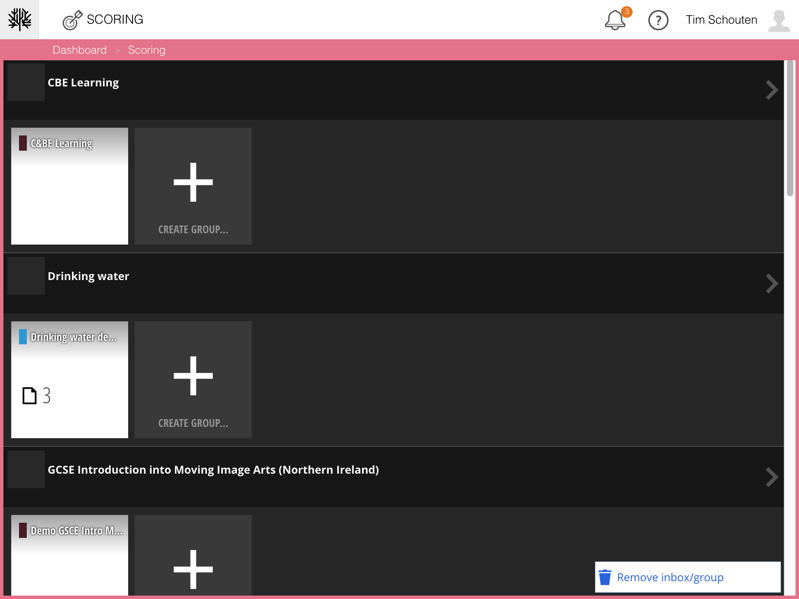
In this screen you can add a new inbox by clicking the "Create group" button. You will then enter a dialog in which you can enter the name of the group you want to add. Once the group is found you can add it and the inbox will be created. When a teacher is added to a group, an inbox is created automatically.
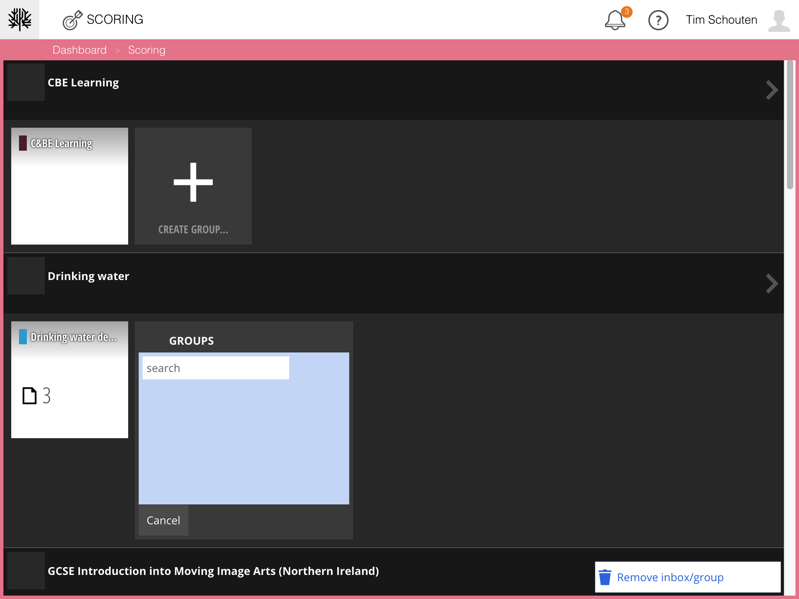
Inboxes and even an entire curriculum can of course also be removed. To do this, the "delete" mode must be activated. This can be done by clicking on the bottom right of the button with "Remove inbox / group" as shown below.
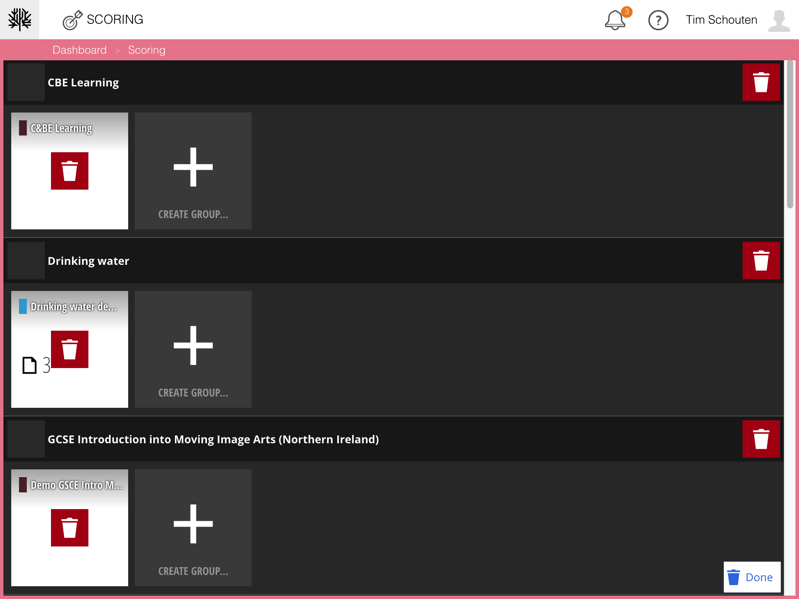
The relevant inbox or curriculum is deleted by clicking on the red buttons with the trashcan icon. When the removal is complete, you can return to the start screen with the "Done" button.
To select a group or even an entire curriculum, click on the mailbox or on the bar with the curriculum name.
Group- and curriculum screen
There is no other difference between the group and curriculum screen besides the selection of students. In the Group screen, only the students from the selected group are shown, in the curriculum screen all students who follow the relevant curriculum are shown. Students are only shown who can see the logged in teacher. The screen contains 3 tabs, Assignments, Students and History. Each tab offers a different entry to the assignments to be scored.
Assignments
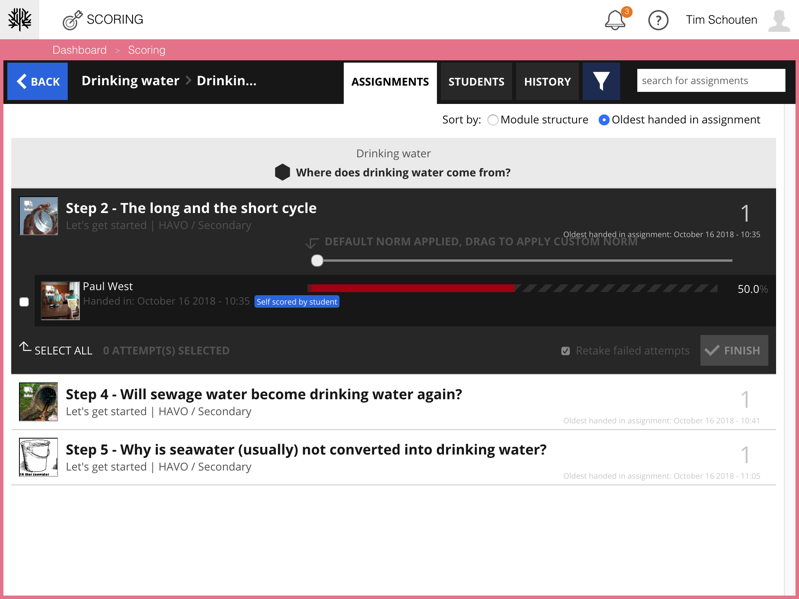
In the Assignments tab, all assignments are grouped per learning object. By clicking on an assignment all attempts to be scored are shown. By default, all attempts are selected so that they can be easily completed. With the Norm slider, a teacher can quickly apply a different standard for all selected attempts. By clicking the "Finish" button, all selected attempts are completed. For attempts which have not met the standard, new attempts are automatically created as the checkbox next to 'Retake failed attempts' indicates.
By clicking on an individual attempt, the user enters the Test screen .
Students
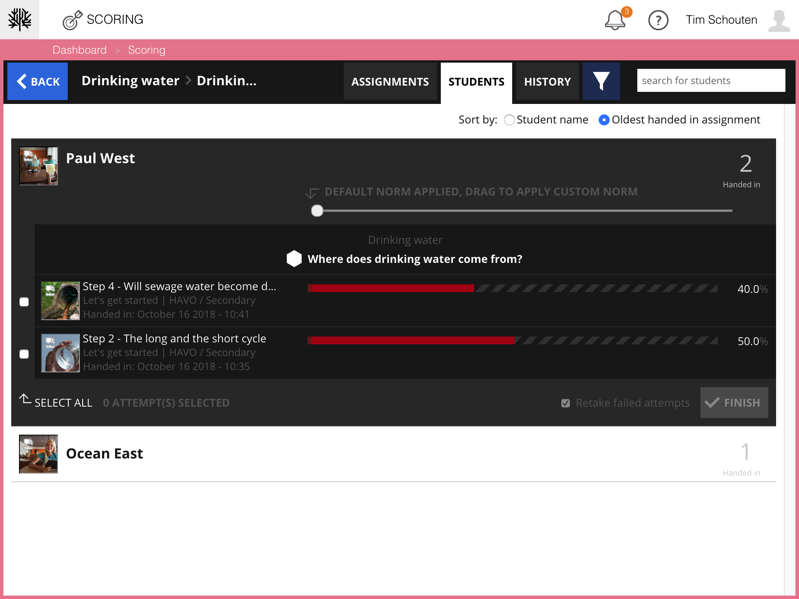
In the Students tab, all attempts are grouped per student. It is possible to sort the list of attempts by student name or by submission date.
By clicking on a student, all attempts by this student are shown. By default, all attempts are selected so that they can be easily completed. With the Norm slider, a teacher can quickly apply a different standard for all selected attempts. By clicking the "Finish" button, all selected attempts are completed. For attempts that have not met the standard, new attempts are automatically created as the checkbox next to 'Retake failed attempts' indicates.
By clicking on an individual attempt, the user enters the Test screen .
History
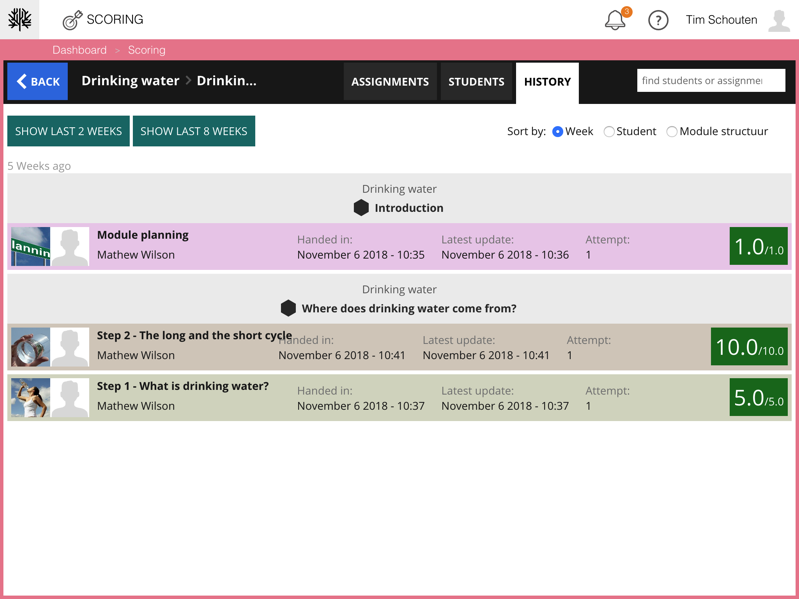
In the History tab, previously scored attempts can be selected. These can then be sorted by week, student or module. By clicking on an individual attempt, the user enters the Test screen .
Filter options
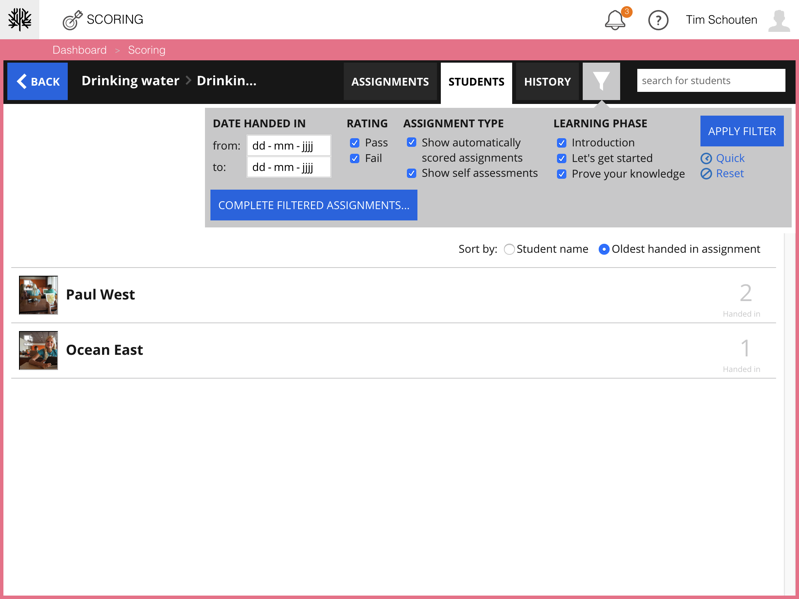
On the Assignments and Students tabs it is possible to further filter the attempts so that the number of attempts can be made a little clearer.
There are 5 filters available:
- Date handed in
- Rating
- Assignment type
- Learning phase
- Student name
These can all be used at the same time.
Test screen
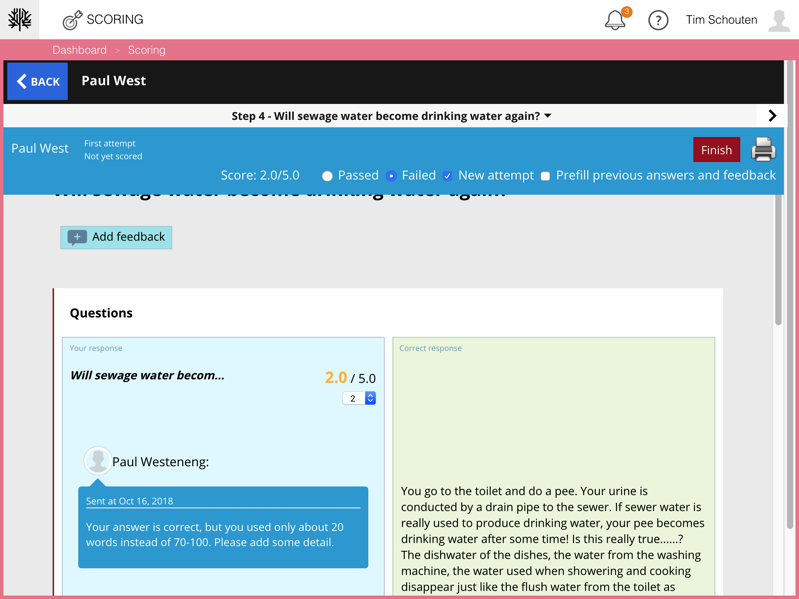
The test screen shows the selected handed in attempt for a test. The teacher can provide feedback here on the test and question level. The teacher can adjust the score and also determine whether or not a student has passed the test. When the teacher thinks that the student has to repeat the test, he can choose to show the previous answers and the feedback in the new attempt. By clicking the "Finish" button, the attempt is closed and the result is made known to the student.
Related Articles
Insight
The Insight App The Insight app is an important diagnostic instrument. It enables teachers to gain insights in the activities that were performed by students, what learning-material was used during these activities and which results were achieved. ...Course administration
Course administration app The Course administration app is used to link students and teachers to a Course or an Offering level by creating groups on the desired level and bringing students and teachers together in those groups. These groups allow ...Progress
The Progress app The Progress app can be used by teachers to monitor and analyze the progress of students. In Summar.io, progress can only be monitored or analyzed for a specific course which has one or more learning lines. In order to use this app, ...User administration
User administration app Within Summar.io a u ser can have several Roles and each role will provide access to certain apps. Besides the different roles the u ser has one or more e-mail addresses which can be used to log in. To administer all the user ...